A floating Pomodoro timer that stays on top of your apps
Pop the timer out into a small window that floats above everything else on your screen: your code editor, Google Docs, Figma, a PDF or an online class. The countdown and the task you are working on stay in view, without switching tabs.
Works in Chrome and Edge on a computer · Last updated October 2026
What is the floating timer?
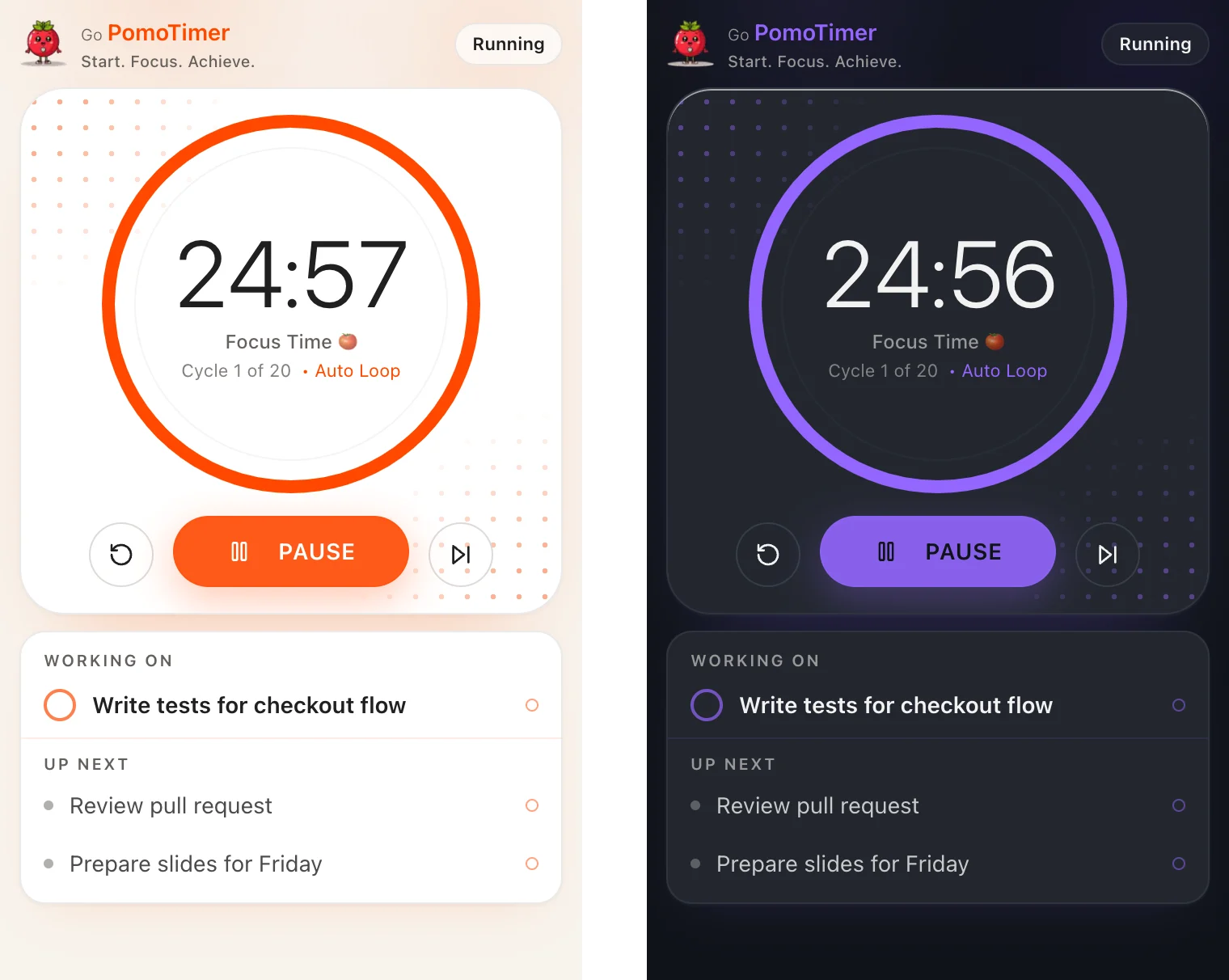
The floating timer is a small window that always stays on top of your other windows. It shows the same timer as the main page, with its countdown circle, your current task and the buttons to start, pause, reset or skip. You can drag it to a corner of your screen and forget about it until the session ends.
Browsers call this kind of window "picture-in-picture", like the small video player that keeps playing while you do something else. Go PomoTimer uses it for your timer instead of a video.
How to open it
- Open gopomotimer.io in Google Chrome or Microsoft Edge on your computer.
- Click Floating timer at the top of the timer card, or the window icon next to the Start button.
- A small window opens. Drag it to a corner of your screen and resize it if you like.
- Press Start, in the window or on the main page, and switch to your work. The window stays on top.
What you can do from the window
- See the time left in the same countdown circle as the main page, with the session type and cycle number.
- Start, pause, reset or skip to the break, without going back to the browser.
- See the task you are working on and how many of its planned pomodoros are done.
- Tick off the task when it is finished. The next task becomes the current one.
- Pick a different task from the Up next list with one click.
The same timer, not a copy
The floating window is a second view of the timer that runs on the main page. Whatever you press in one, the other shows straight away. Nothing runs twice, so your settings, sounds and auto-loop work the same way.
A session you finish from the floating window counts like any other: it goes to your stats, your streak and the leaderboard when you are signed in, and it adds a pomodoro to your current task. Changes to tasks are saved the same way as on the main page.
It fits the space you give it
- Tall window: the full view, with the countdown circle, the buttons, your current task and the tasks up next.
- Shorter window: the countdown, the buttons and your current task.
- Small window: one line with a small progress ring, the time, your task and a pause button.
Ways people use it
- Coding: keep it in a corner of your editor so you know when to stop for a break, without leaving your code.
- Writing: work in Google Docs or Word with the time and your writing task in view.
- Design: place it over a quiet part of your Figma canvas.
- Studying: keep it next to your notes, a PDF or an online lecture, with the chapter you are on as the task.
Want longer focus blocks while you code or write? Try the 50/10 timer, or add lo-fi beats to the session.
Questions and answers
Which browsers support the floating timer?
Google Chrome and Microsoft Edge on a computer (Windows, Mac, Linux or ChromeOS), version 116 or newer. Some other browsers built on Chrome may support it too. If yours does, the Floating timer button on the timer opens the window; if not, the button tells you that your browser does not support it.
Does it work in Safari or Firefox?
Not yet. Safari and Firefox don't let websites open this kind of window so far. You can still keep Go PomoTimer in a background tab: while the timer runs, the tab title shows the time left, and a chime plays when the session ends.
Does it work on phones and tablets?
No. Phone and tablet browsers don't support floating windows for websites. On a phone, the timer keeps the right time while you use other apps and catches up when you come back.
Do I need to install anything or create an account?
No. There is no extension, no app and no account. It is a button on the timer.
Do sessions in the floating timer count toward my stats and the leaderboard?
Yes. The floating window is a second view of the same timer, not a separate copy. A session you finish counts exactly like one finished on the main page: with a free account it goes to your stats, streak and the leaderboard, and it adds a pomodoro to the task you are working on.
What happens if I close the Go PomoTimer tab?
The timer stops and the floating window closes, because the timer runs in that tab. Switching to other tabs or apps is fine: the floating window keeps showing the right time. Leaving the timer page closes the window too.
Can I move and resize the window?
Yes. Drag it anywhere on your screen and drag an edge to resize it. With more room you see more of your tasks; when you make it small, it shrinks to one line with the time, your task and a pause button.
How do I close it or get back to the main timer?
Click the close button in the window's title bar, or click Floating timer again on the main page. The back-to-tab button in the title bar takes you straight to the Go PomoTimer tab.
Will I still hear the chime when a session ends?
Yes. The chime plays from the Go PomoTimer tab when a session ends, as long as sound is on in the timer and on your computer.
Can the floating window see my screen or my other apps?
No. The window belongs to the Go PomoTimer page and only shows the timer and your tasks. It cannot see what else is on your screen or read other apps, and it needs no extra permissions.
Does it follow my theme?
Yes. It uses the same theme as the timer, including the dark Midnight Focus theme, and switches as soon as you change the theme on the main page.
Is there a keyboard shortcut?
When the floating window is selected, press Space to start or pause, just like on the main page.
Is the floating timer free?
Yes. Like the rest of Go PomoTimer, it is free and has no ads.
Try the floating timer
Open the timer in Chrome or Edge and click Floating timer at the top of the timer card.
